| 1, Create a new window sized 600x300.
(File > New)
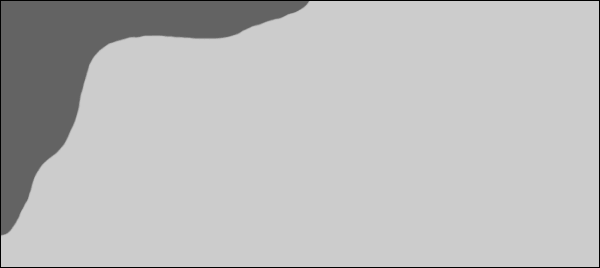
2, Create a shape of your wish, using the paint tool, or
the selection tool. Fill the area completly grey.
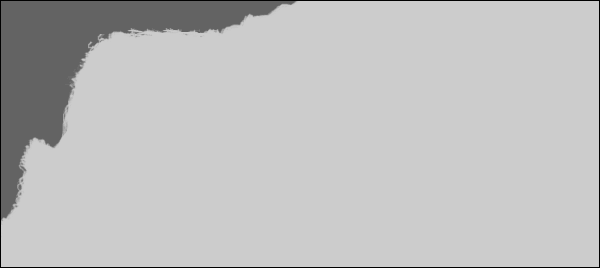
3, Now add some scarfs and other pieces onto your shape to
make it look more interesting.
4,Copy the following texture, or search your
own on the web and copy it.
The texture I used was taken from
3dcafe. More metal textures can be found here.
Paste it into PhotoShop by pressing (CTRL+V).
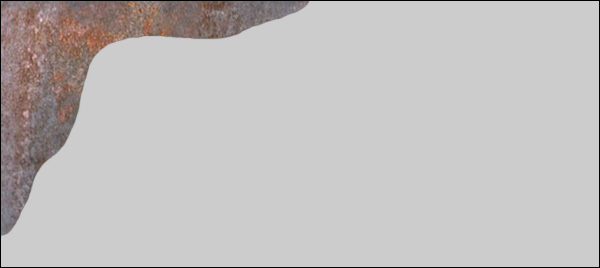
5,Move it over the shape u just created, so
you cant see any of the shape anymore.
Select the shape you created before by clicking onto it with
the right mouse button in the layer window.
Now press "CTRL+ALT+I". This will invert the selection,
meaning that everything except teh shape is selected. Now
press the Delete button to get the right shape of the metal
texture.
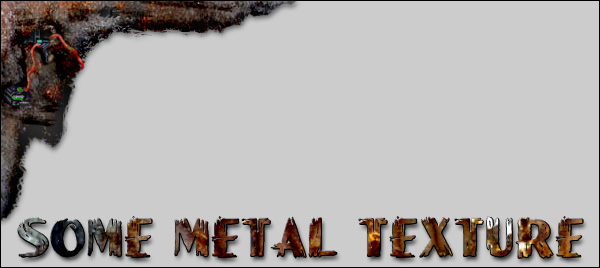
6, To add extra depth into the texture, use
the Burn and Dodge tools to darken and/or lighten spaces up.
You can also use the Layer
styles to add a 3d effect to the object fast.
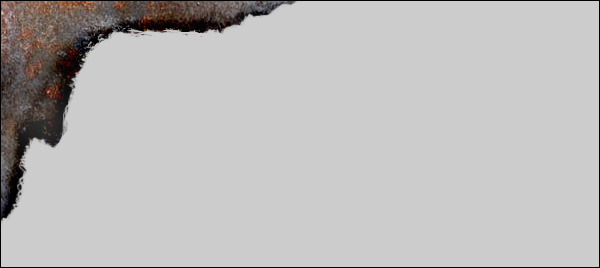
At last , adding some scratches, bulletwholes
and wires for our wirefreaks out there will make the object
look even better.
|
